How to Fix Common Apple Watch Issues
Your Apple Watch serves as a reliable companion for fitness tracking, communication, and daily productivity. However, like any sophisticated device, it can occasionally experience technical hiccups that disrupt your routine. Understanding how to troubleshoot these problems quickly can save you time and potentially avoid unnecessary Apple watch repair.
The wearable technology repair market has grown significantly, with smartwatch issues representing a substantial portion of consumer electronics problems. Many Apple Watch complications can be resolved through simple troubleshooting steps, making it worthwhile to attempt fixes before seeking professional assistance.
Battery Draining Too Quickly
Rapid battery depletion ranks among the most frequent Apple Watch complaints. Several factors contribute to shortened battery life, including outdated software, excessive background app activity, and display settings.
Start by checking your watchOS version through the Settings app. Outdated software often contains bugs that unnecessarily consume power. Navigate to General > Software Update to install any available updates.
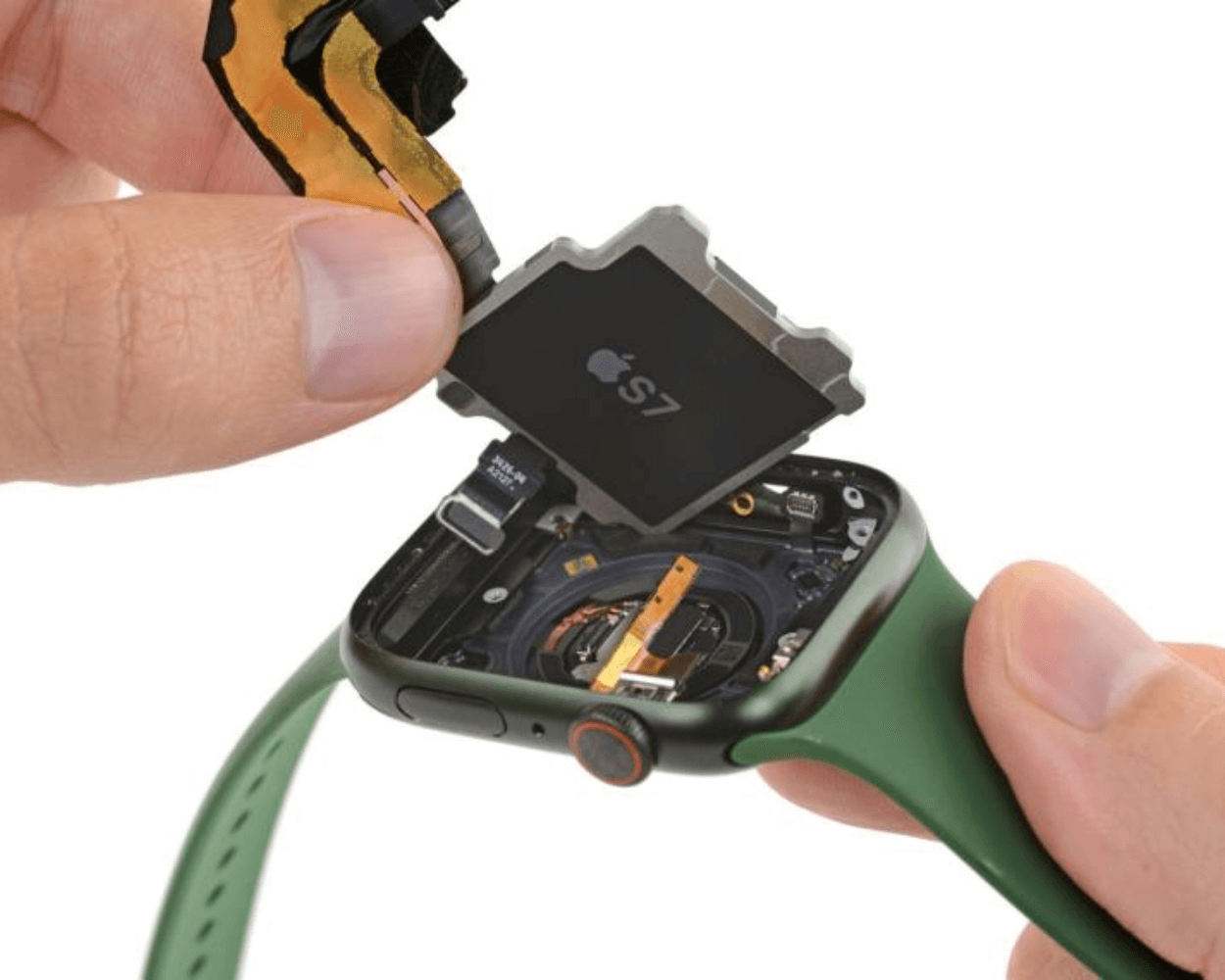
Review your app usage patterns by examining the Battery section in your iPhone's Watch app. Apps consuming excessive power should be closed or have their background refresh disabled. Consider reducing display brightness and shortening the wake duration to preserve battery life.
Connectivity Problems with iPhone
Connection issues between your Apple Watch and iPhone can prevent notifications, calls, and data synchronization. These problems typically stem from Bluetooth interference, distance limitations, or software glitches.
Ensure both devices remain within close proximity, ideally within 30 feet of each other. Check that Bluetooth is enabled on your iPhone through Settings > Bluetooth. If connectivity persists, try toggling Airplane Mode on both devices for 30 seconds before re-enabling normal operation.
Restarting both devices often resolves stubborn connection problems. Hold the side button and Digital Crown simultaneously for 10 seconds to force restart your Apple Watch.
Unresponsive Touchscreen or Digital Crown
Physical interaction problems can make your Apple Watch nearly unusable. A frozen screen or stuck Digital Crown prevents normal navigation and app access.
For touchscreen issues, perform a force restart by holding the side button and Digital Crown together until the Apple logo appears. This process typically takes 10-15 seconds and resolves most software-related freezing problems.
Digital Crown sticking often results from dirt, sweat, or debris accumulation. Rinse the crown area with warm water while gently rotating it back and forth. Avoid using soap or harsh chemicals that could damage internal components.
App Crashes and Performance Issues
Slow performance or frequent app crashes indicate potential memory problems or corrupted data. These issues can significantly impact your Apple Watch's functionality and user experience.
Close problematic apps by pressing the side button to access the Dock, then swipe up on misbehaving applications. Restart individual apps by removing and reinstalling them through the Watch app on your iPhone.
Clear storage space by deleting unused apps, photos, or music stored locally on your watch. Navigate to Settings > General > Usage to identify space-consuming content.
Charging Problems
Charging difficulties prevent your Apple Watch from maintaining power, rendering it essentially useless. These problems often involve hardware connections or software recognition issues.
Clean both the charging cable contacts and the back of your Apple Watch using a lint-free cloth. Magnetic charging requires proper alignment, so ensure the cable snaps securely into position.
Try different power sources, including wall adapters and USB ports, to eliminate charging cable or power supply problems. If charging issues persist after cleaning and testing multiple power sources, the charging cable may require replacement.
When Professional Help Is Needed
Some Apple Watch problems require expert intervention beyond basic troubleshooting. Hardware failures, water damage, or complex software corruption often need specialized repair services.
Professional repair shops report that battery replacements have increased dramatically as users keep devices longer. Screen repairs and charging port issues also represent common service requests requiring technical expertise.
Consider professional assistance when basic troubleshooting fails to resolve persistent problems, especially if your device is still under warranty coverage.
Keeping Your Apple Watch Running Smoothly
Regular maintenance prevents many common issues from developing. Keep your watchOS updated, monitor storage usage, and clean your device regularly to ensure optimal performance.
Most Apple Watch problems respond well to systematic troubleshooting approaches. By following these solutions methodically, you can resolve many issues independently and maintain your device's reliability for daily use.
Replies